Posts in Programming

Install Swagger for Golang Project

Hello, in this post, I will share how to install and setup swagger for a Golang Project. As we know, swagger can easily generate API documentation that can shared to the frontend.

After reviewing and trying to implement on my Golang project, I decided to use Swaggo instead go-swagger. This is because swaggo is more easier and automatic when generate API documentation.

Let’s get started.

  1. Before install, make sure you have Golang installed on your local machine. In my case, I’m using Golang 1.25.5 and Golang fiber for the framework.
  2. Go to your Golang project and run command below:
    • go mod tidy && go install github.com/swaggo/swag/cmd/swag@latest
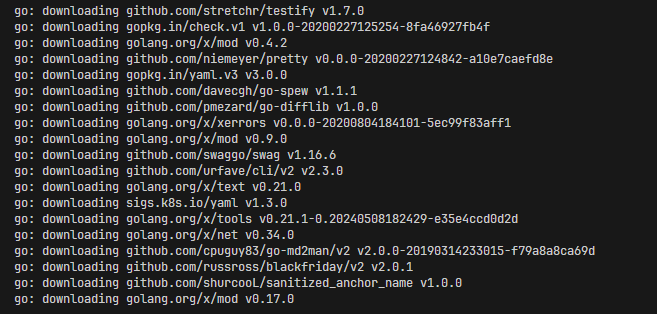
    • Wait until download process complete
  3. After download process is complete, you can generate the documentation by running command below:
    • swag init -g main.go
    • If the generation is successfull, it will show message similiar to the one below:
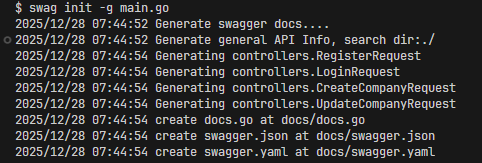
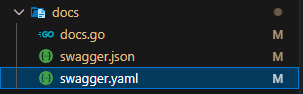
  4. The generation will create a new directory named docs, and contains 3 files:
  5. Before continue, don’t forget to add a new route for swagger
    • package main
      
      import (
        "log"
        "os"
        "github.com/gofiber/fiber/v2"
        "github.com/gofiber/fiber/v2/middleware/cors"
        "github.com/gofiber/fiber/v2/middleware/logger"
        "github.com/gofiber/fiber/v2/middleware/recover"
        swagger "github.com/swaggo/fiber-swagger"
      )
      
      // Swagger routes
      app.Get("/swagger/*", swagger.WrapHandler)
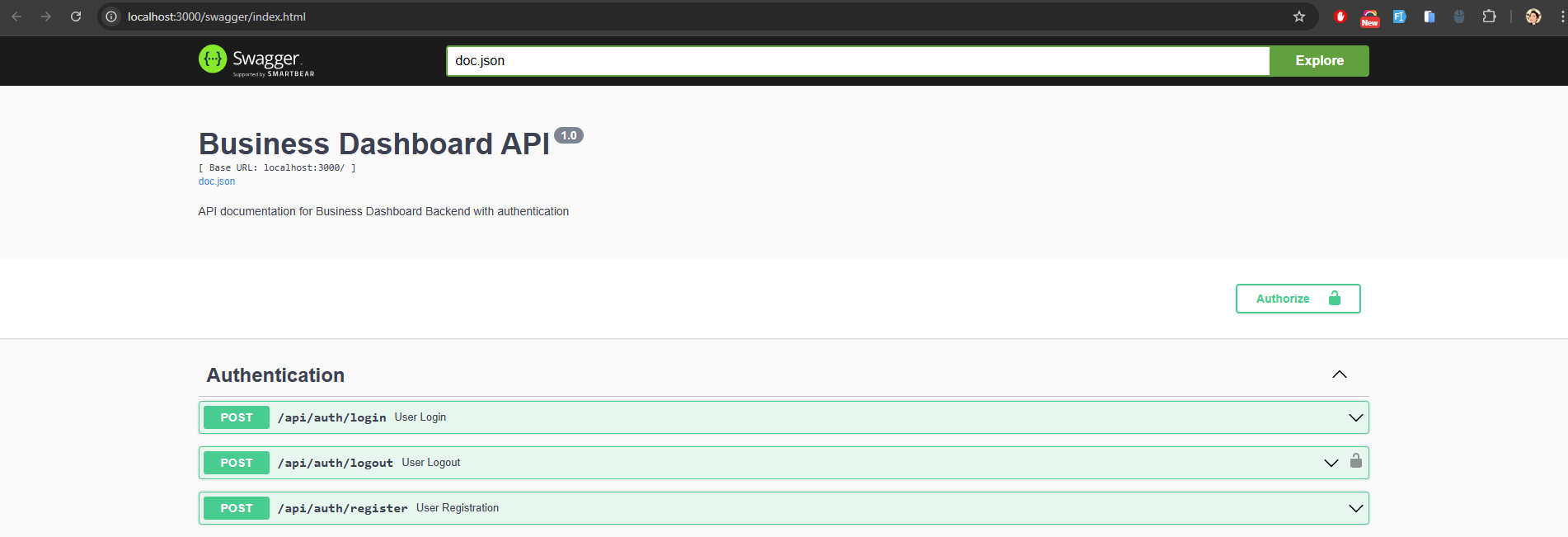
  6. Run the project and open the swagger documentation on:
    • http://localhost:3000/swagger/index.html
    • The link depend on the port you are using ✨
Running Golang Locally Using Ngrok

Here is step by step on how to run golang locally using Ngrok.

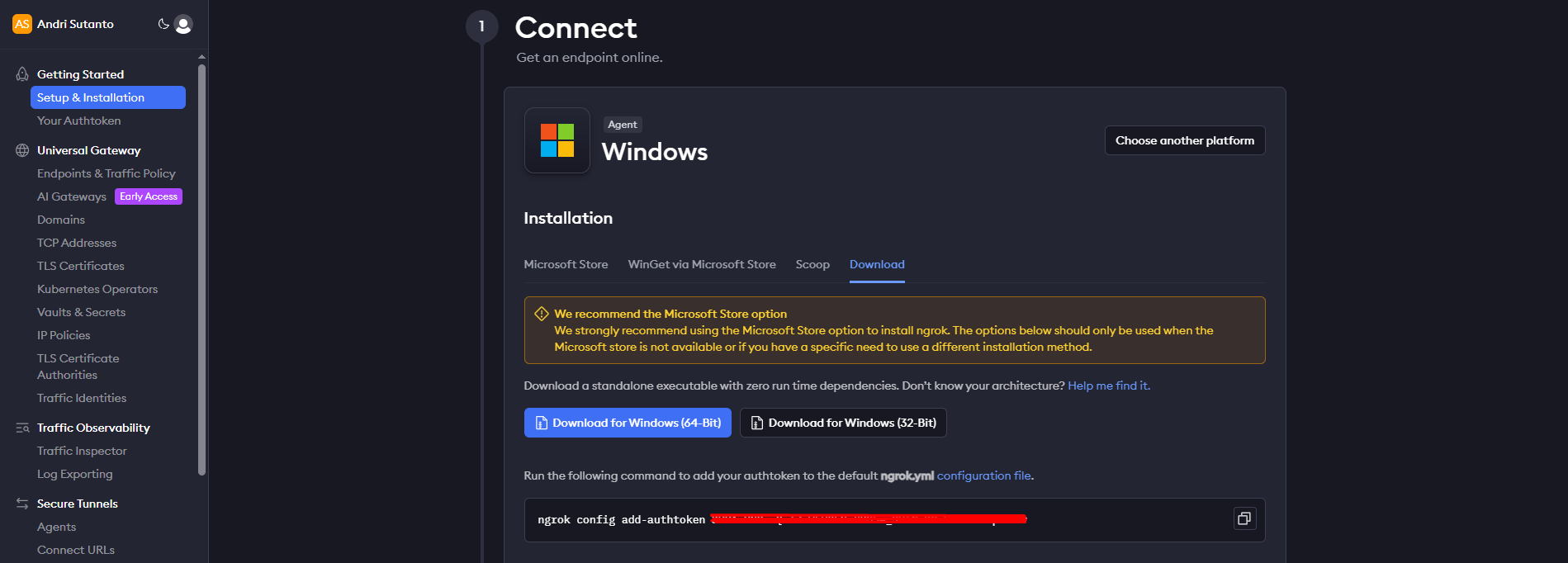
  1. First, register Ngrok from this site: https://ngrok.com/
  2. Download Ngrok client. Since I use Windows, then I download the .exe files. They also provide option for another OS, such as Mac or Linux OS.
  3. Next, back to your Golang project on local / code editor and run:
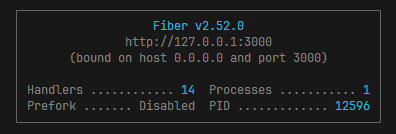
    • go run main.go, in this case I use port 3000
  4. After that, go to command prompt, and run command below:
    • ngrok http 3000
    • Make sure the port is same with your golang port
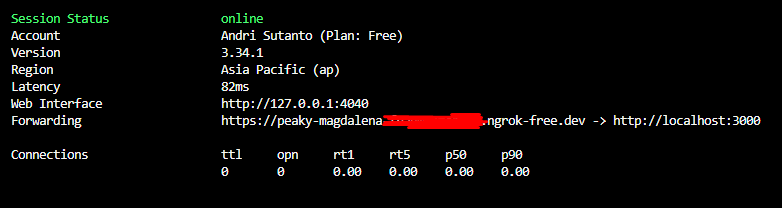
  5. After running command above, it will show forwarding address. Ngrok will automatically assign a sub domain for you. You can now testing using that URL.

Using Ngrok is very helpful, especially when you’re in testing phase and want to connect from your frontend to the backend side. In this case, I use Ngrok to connect from mobile app running on my device to my local Golang backend.

Tailwind CSS Notes

In this post, I write some notes about Tailwind CSS.
The goal is to refresh my memory about utility classes that I often use in Tailwind.

This post is like a wrap for all Tailwind notes in one place.
📝 When we write things down, it help us to remember faster and not forget the basic things.

note: this post will update constantly.

  1. Font Size
    • for font size, the class is:
    • text-{size}, the size is start from xs in to 9xl
    • sample:
      • text-xs
      • text-base
      • text-sm
  2. Font Weight
    • for font weight, the class is:
    • font-{weight}, the weight option is:
      • thin
      • light
      • normal
      • medium
      • semibold
      • bold
      • extrabold
      • black
  3. Text Align
  4. Margin
  5. Padding
  6. Border